A tour of the Mockups Generator panel
May 7, 2026
Click through every tab in the Photoshop panel — what each one does and when you'll use it.
Mockups Generator is a Photoshop panel that takes one design and turns it into hundreds of finished, named, sized mockups. Instead of opening a template, dragging your design in, exporting, and repeating 200 times — point the panel at three folders, hit Run, and walk away.
Here's what each tab does. (You can click through the same tabs live on the homepage tour.)
Home — pick your folders, hit Run
This is where 90% of your time will be spent. Three folders, one button.
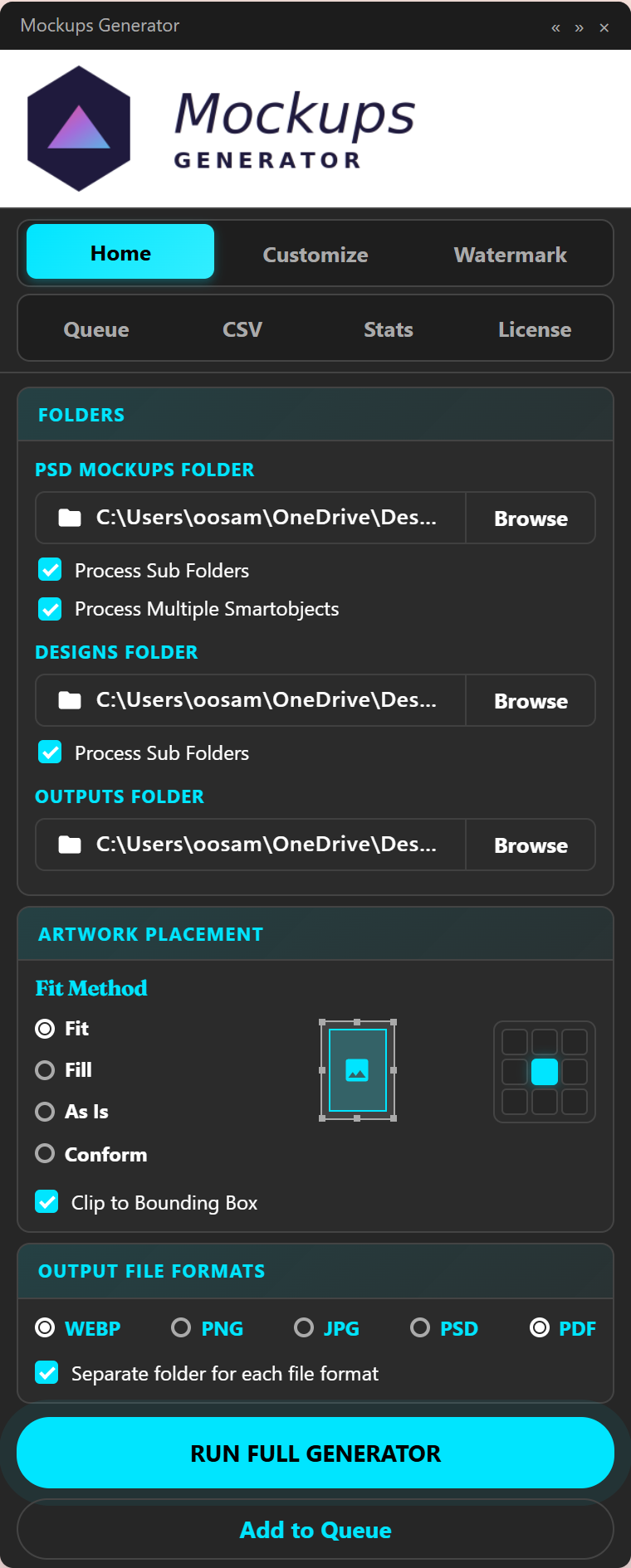
- PSD Mockups Folder — your
.psdtemplates with smart objects (shirts, mugs, totes, whatever). - Designs Folder — your artwork files (
.png,.jpg, etc.). - Output Folder — where finished mockups land. Auto-named, organized by template.
Pick your artwork placement (Fit, Fill, As Is, or Conform), choose your output formats, and click Run Full Generator. The panel opens each template, replaces every smart object with each design, and exports.
Customize — naming, sizing, smart-object rules
Once you've shipped a few batches you'll want to control how files are named and sized.
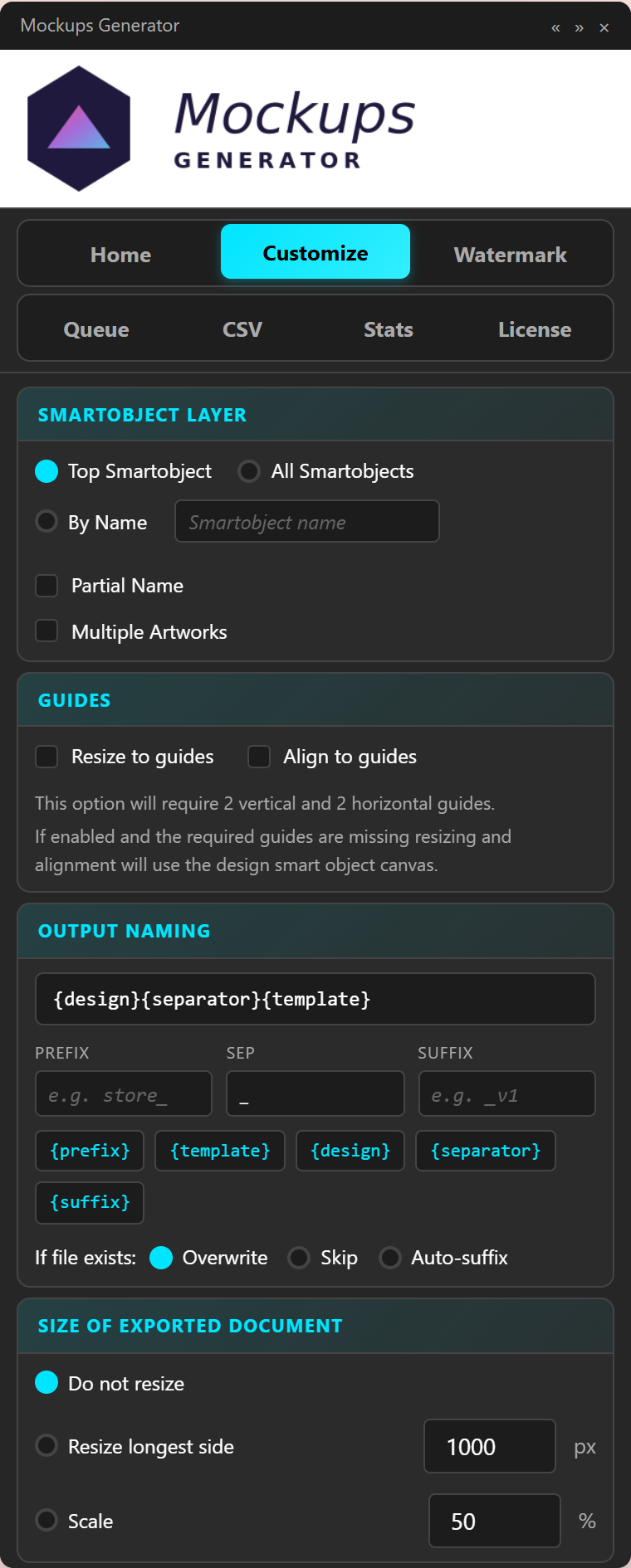
- SmartObject Layer — choose which smart object the design lands in. Pick the topmost, all of them, or one by name.
- Guides — resize and align the design to the template's existing guides.
- Output Naming — build filenames from tokens like
{design}_{template}with prefixes, suffixes, and separators. - Size of Exported Document — resize outputs (great for shop-ready dimensions).
Watermark — brand every output the same way
Apply your logo as a watermark to every generated file.
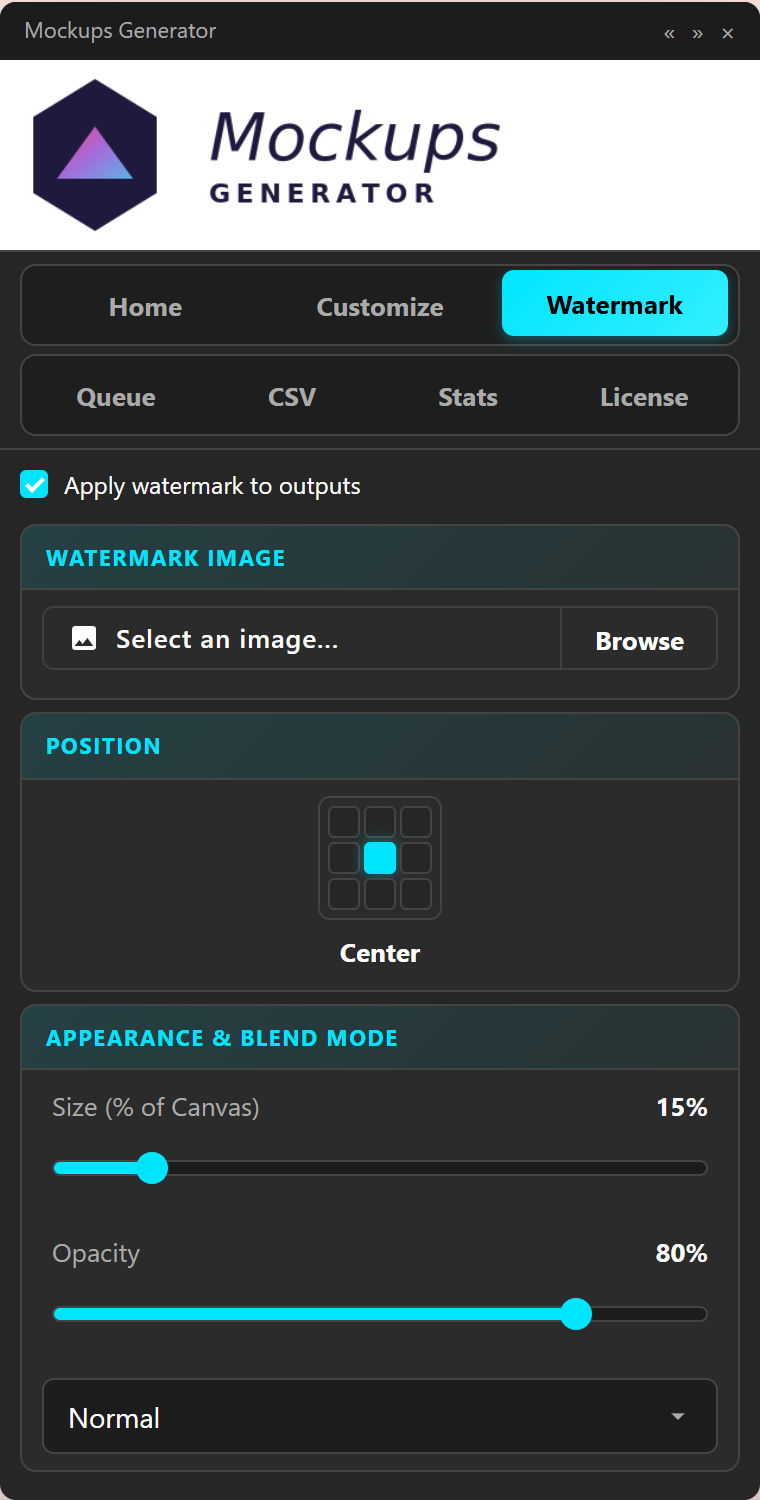
Pick an image, position it in any of nine cells, set size and opacity, choose a blend mode. The watermark is baked into every export.
Queue — stack batches, walk away
Set up multiple batches and run them in sequence (overnight, while you sleep, or while you do anything else).
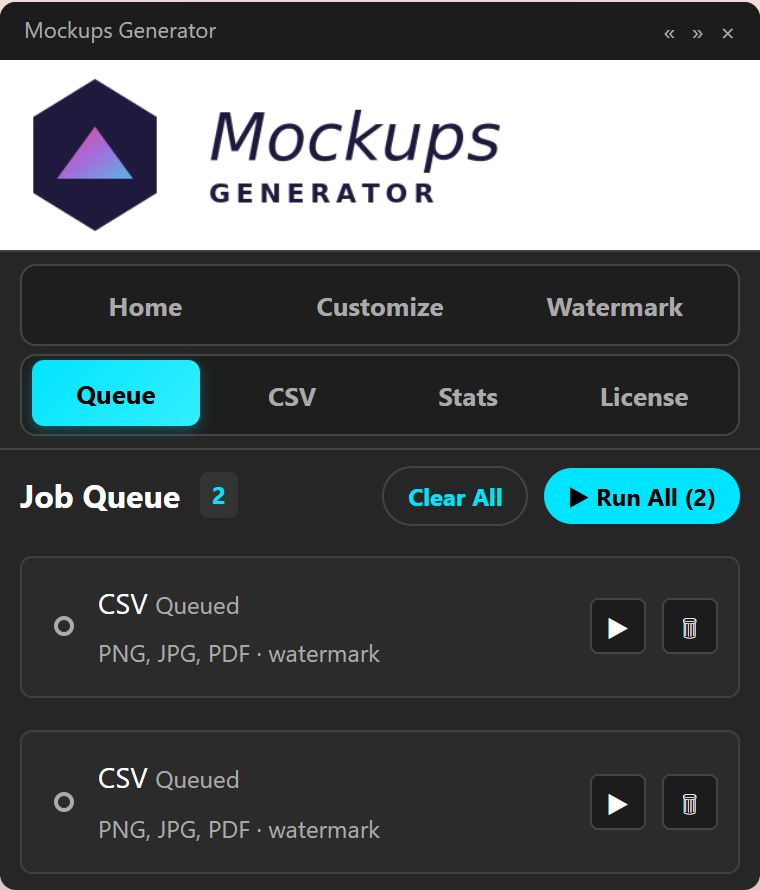
Add the current configuration to the queue, then change folders and add another. Hit Run All and the panel works through every job. Crash recovery means you can pick up where it stopped.
CSV — drive mockups from a spreadsheet
When you need data-driven mockups (catalog runs, regional variants, A/B test sets), CSV mode pairs each row of a spreadsheet to one mockup.
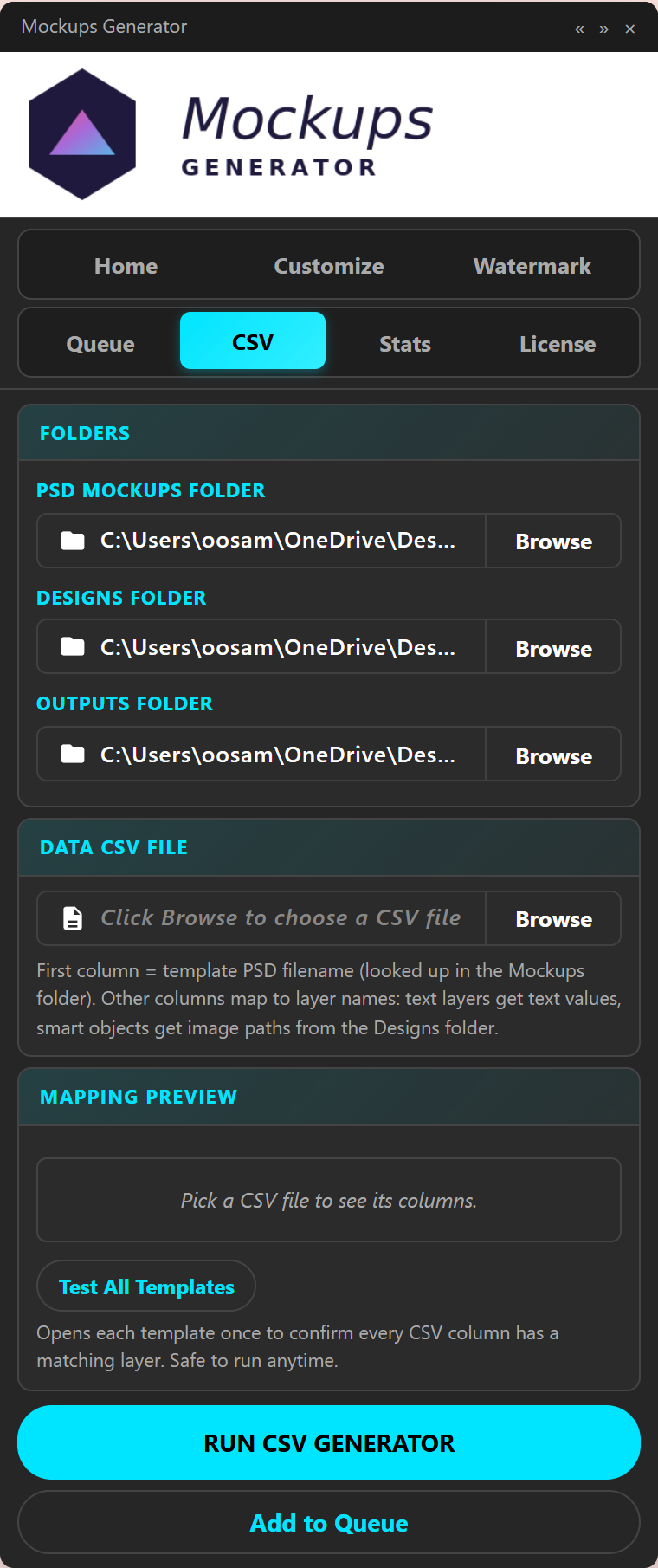
Pick a CSV. The panel maps {design}, {template}, {color}, {size} columns to the right files and tokens. One row = one mockup. Tokens go anywhere in your filename.
Stats — see your time saved
Every batch is logged. Watch your hours stack up.
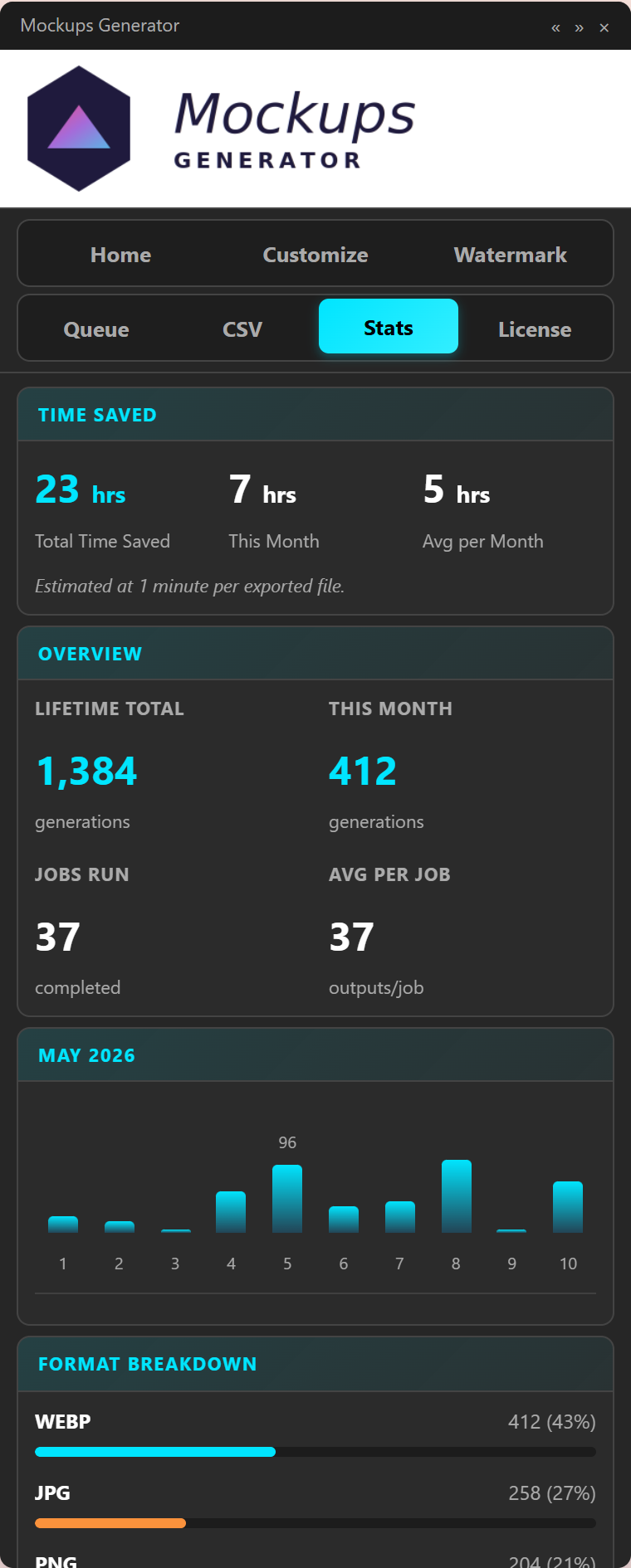
Total time saved, lifetime generations, monthly bar chart, format breakdown. If you've ever wondered how many hours of "Save As" you've outsourced, this is where you find out.
License — manage your account
This is where your tier, renewal date, and device list live.
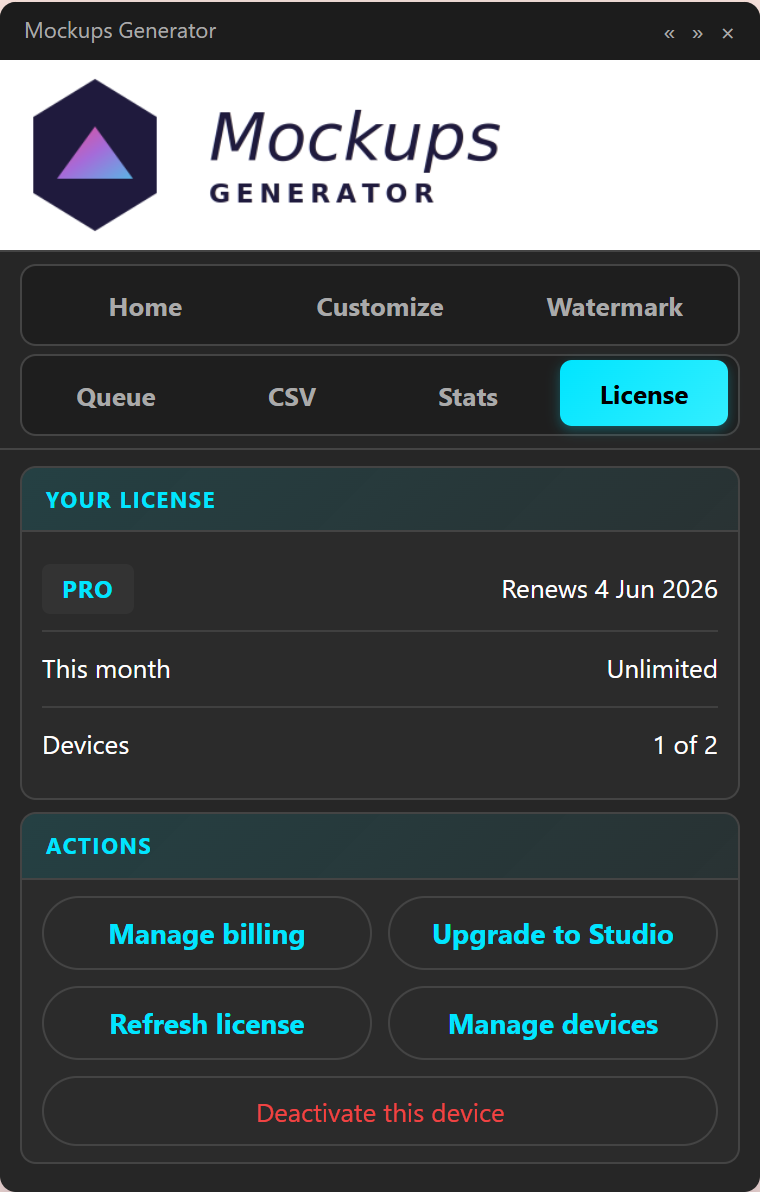
Manage billing in Gumroad, refresh the license after a tier change, or deactivate this device when you switch computers (you can also do this at /account).
That's the panel
Three folders. One run. Hundreds of mockups. The boring part is finally automated.
Ready to try it? Get the panel — Free tier ships 150 mockups a month.